> For the complete documentation index, see [llms.txt](https://docs.intract.io/llms.txt). Markdown versions of documentation pages are available by appending `.md` to page URLs; this page is available as [Markdown](https://docs.intract.io/product-guide/community-hub-guides/community-settings.md).
# Community Settings
[Visit](https://app.intract.io/app/community-settings/profile) ↗️
### 1. Project Profile
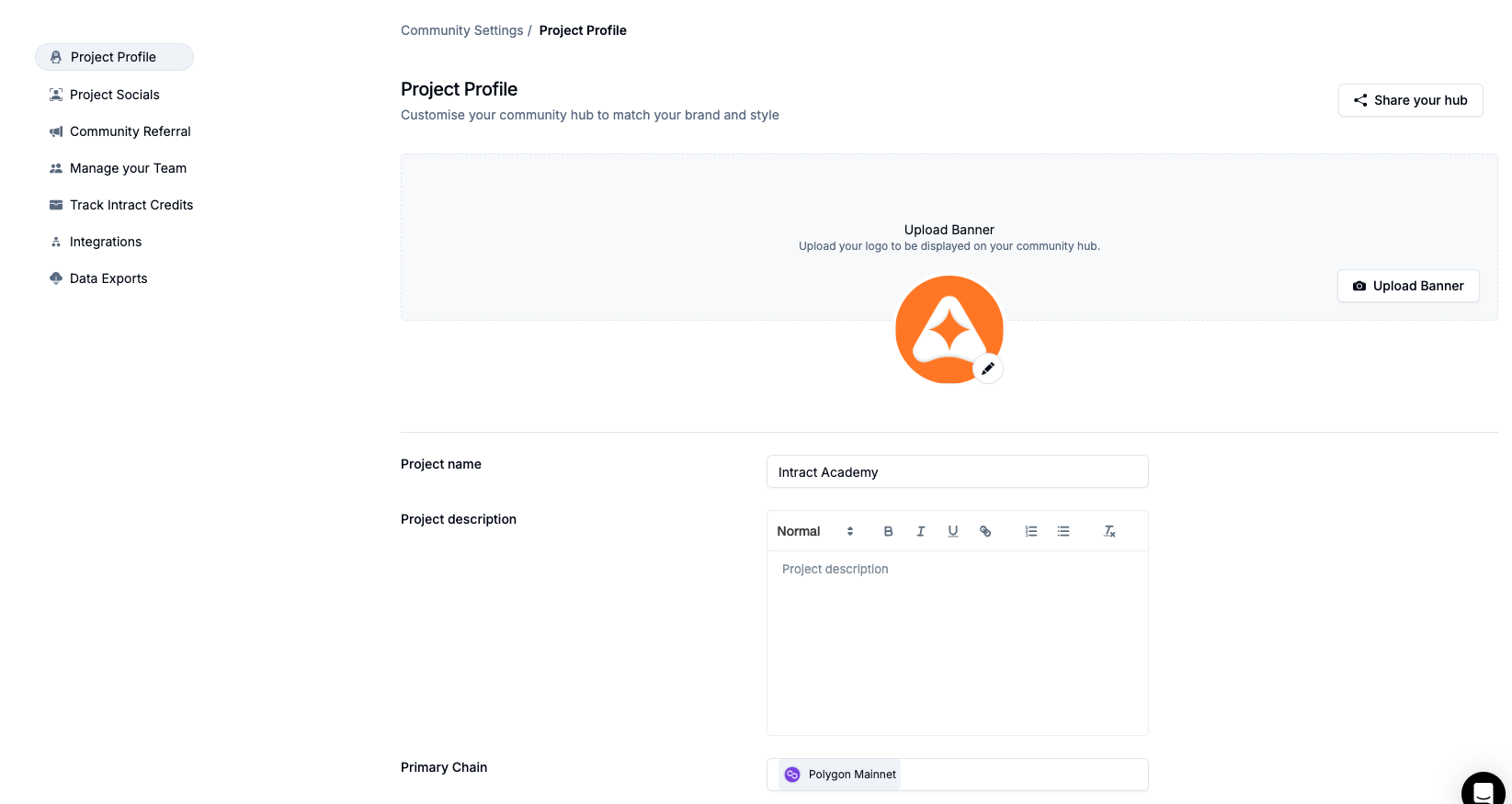
Change the project name and description as needed in case your project evolves. You can replace your current logo or add a new banner to visually represent your project. Primary chains can be added or removed according to your requirements. We also support the addition of custom chains.
### 2. Project Socials
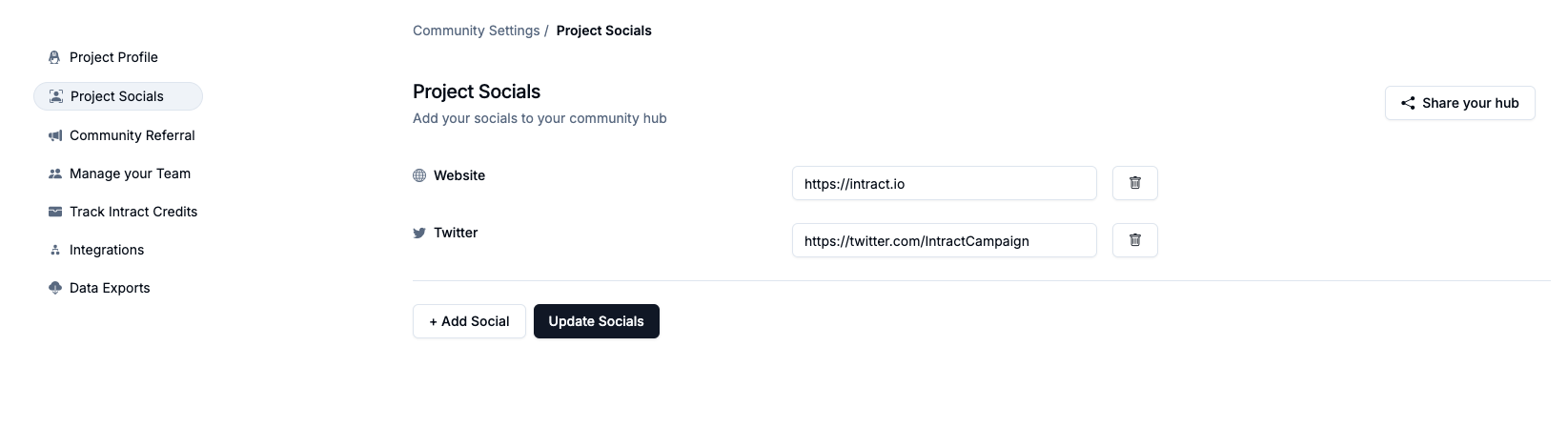
Manage your project's social presence. You can remove or edit any pre-existing socials, or add more if you expand your social media presence. You can add a wide range of links to visit: Twitter, Discord, Telegram, and our own website, ensuring all your social channels are connected to your project.
### 3. Community Referral
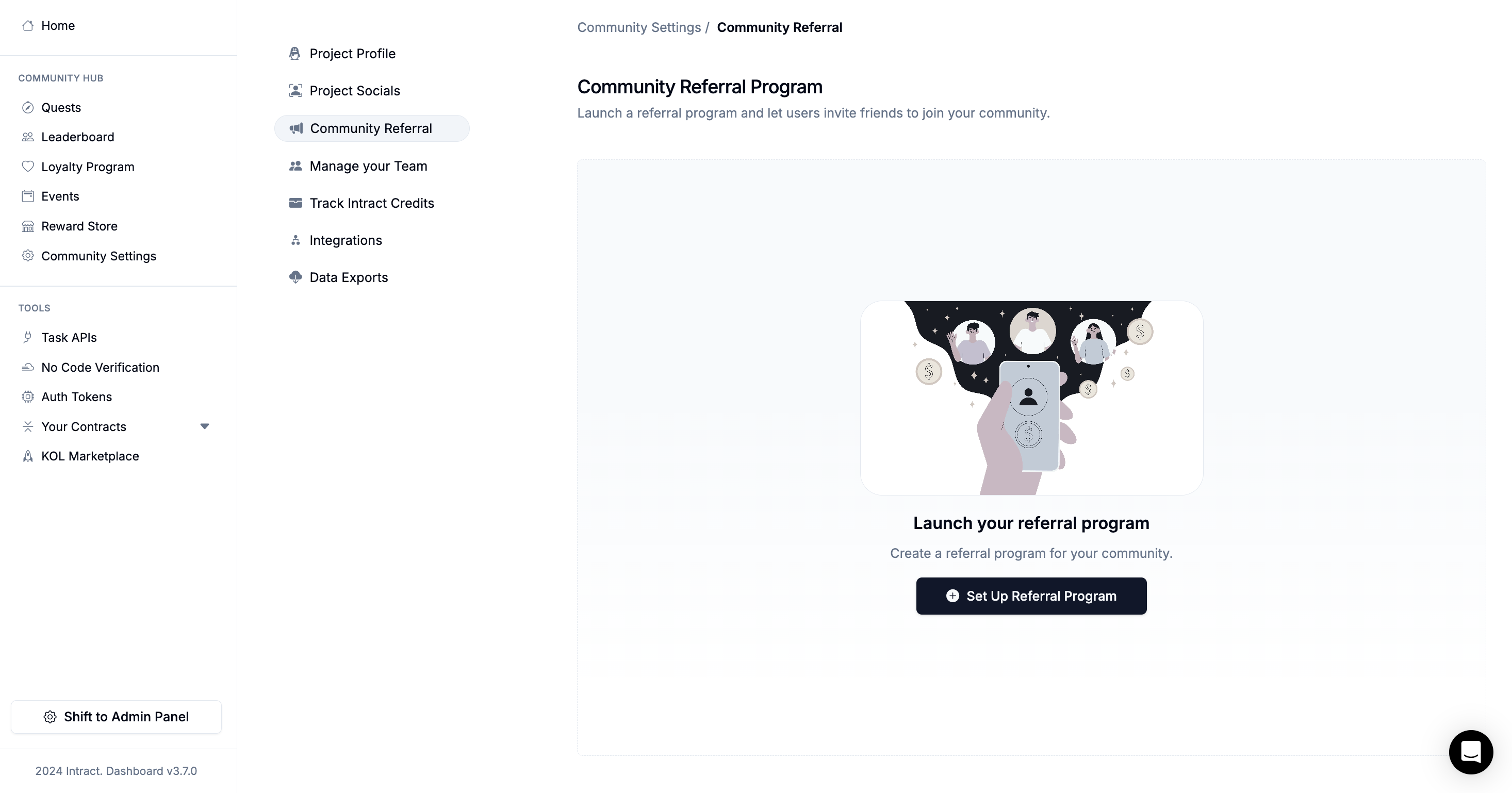
Intract's Community Referral Program lets users invite friends to join your community. "Community Referral" -> Set up Referral Program
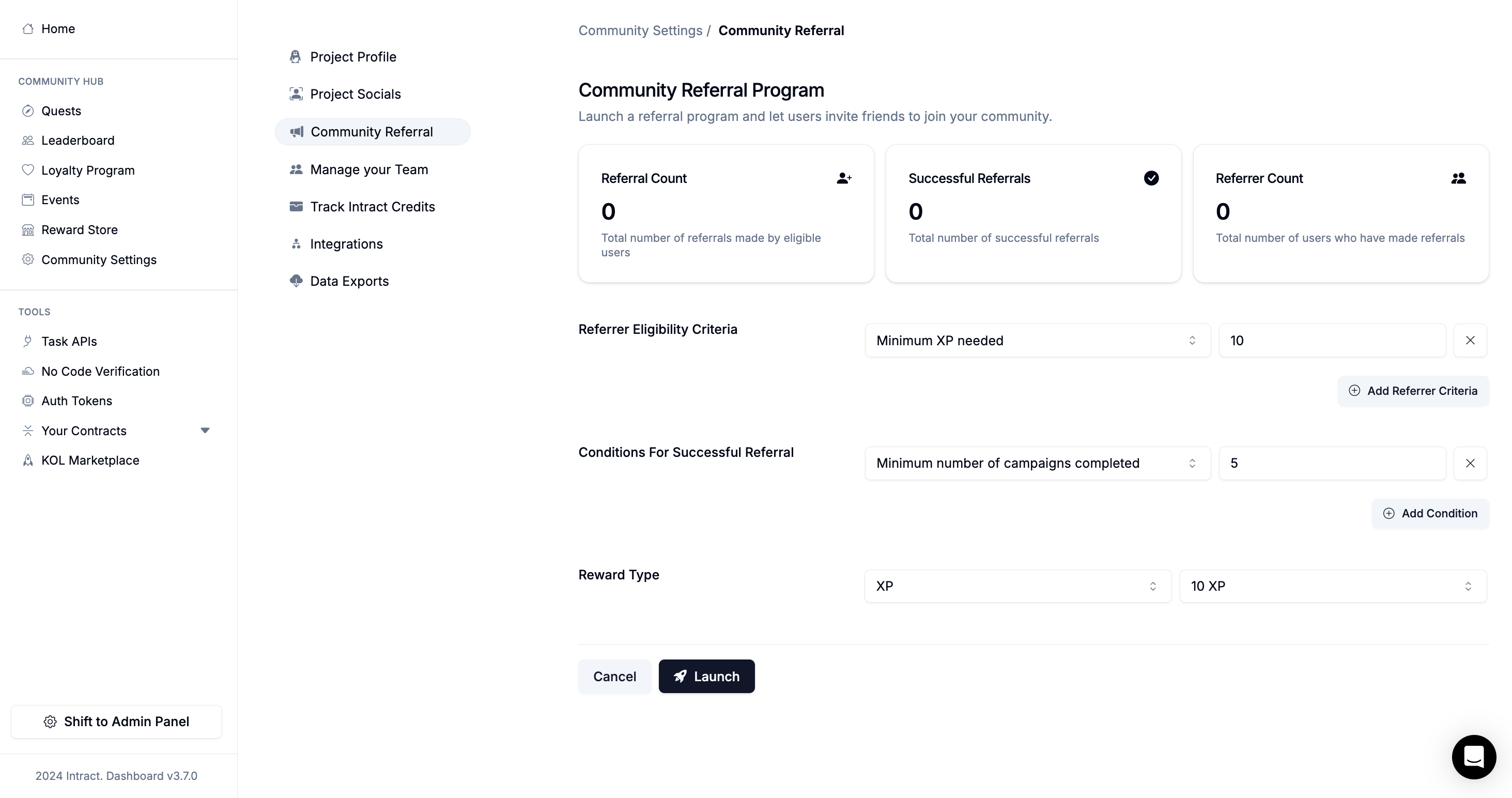
You can track the number of referrals and successful conversions made by your eligible users. The program also allows for the setting of eligibility criteria, such as requiring minimum XP (experience points), completion of a certain number of campaigns/loyalty tasks, or specific campaigns completed before users can become referrers.
You can distribute rewards, such as XP, when referral conditions are met.
### 4. Manage Your Team
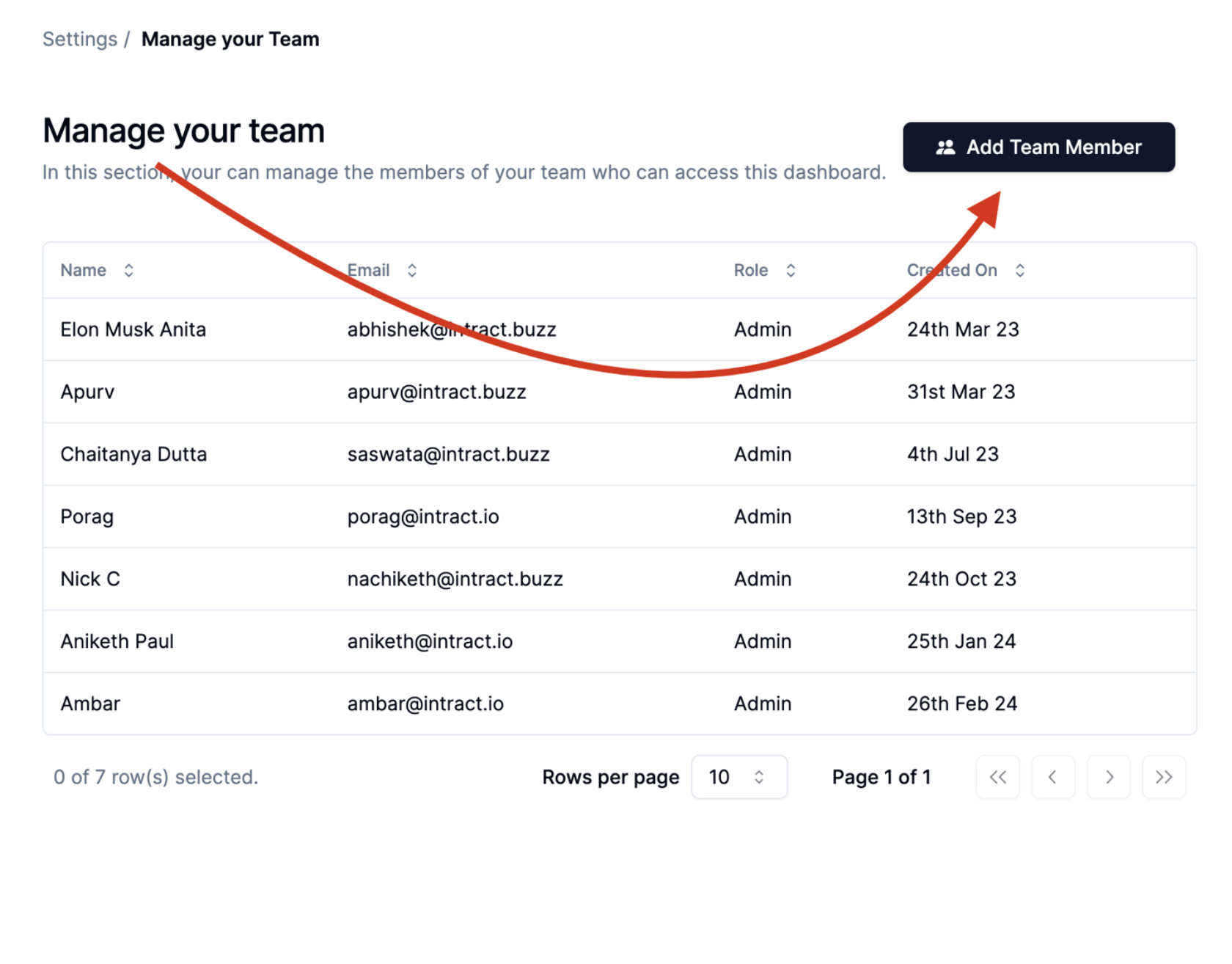
If you are looking to add a new member to your team, start by going to the Community Settings, and find the 'Manager Your Team' section there. Here, you will see an option 'Add Team Member'.
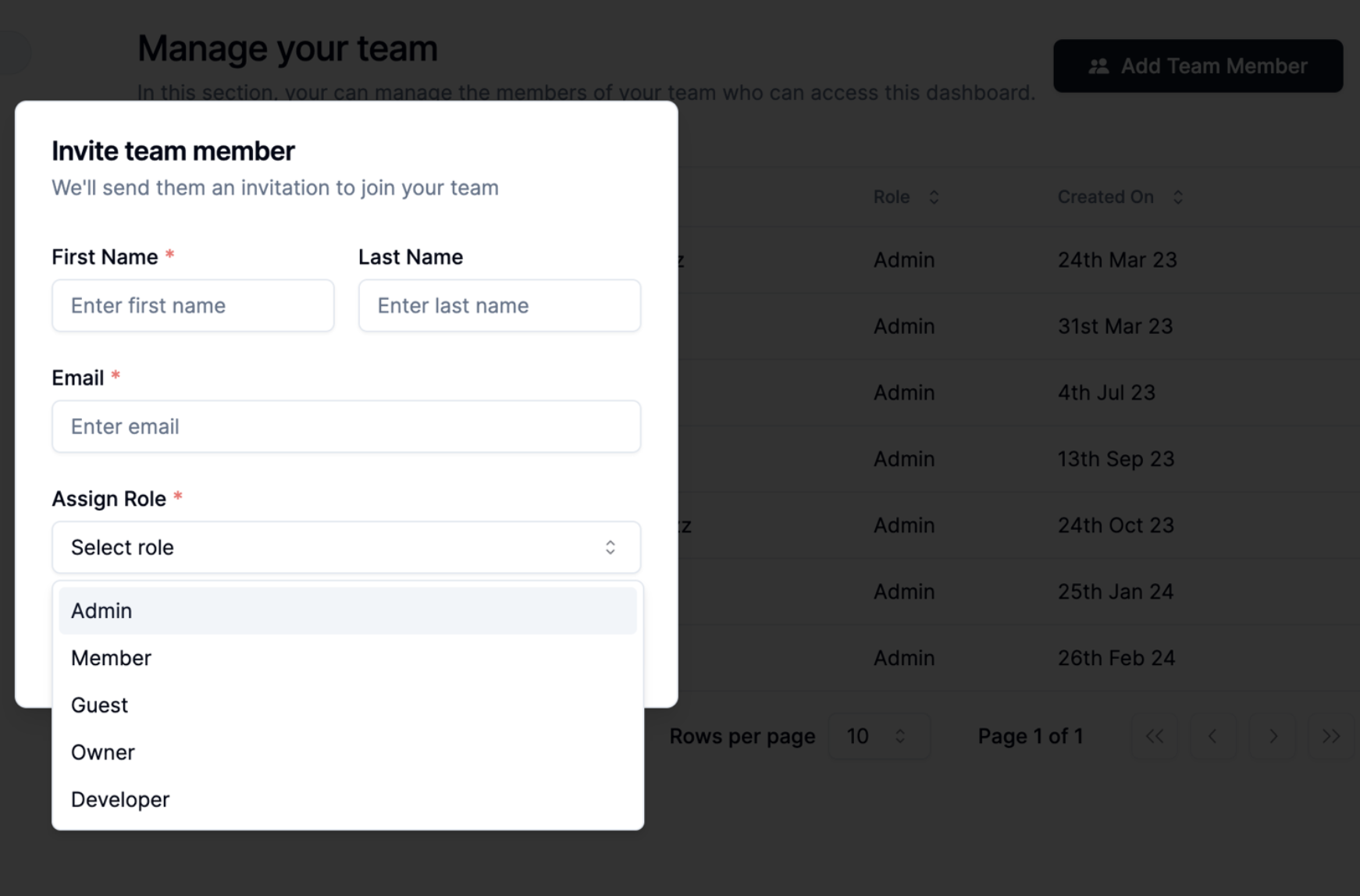
After clicking on "Invite Team", you'll need to enter some details about the person you're inviting. This includes their name and their email ID. These details ensure that the invitation is sent to the correct person.
In addition to these basic details, you'll also need to define the role of the new member. The roles are structured in a hierarchy as follows: Owner, Admin, Developer, Member, and Guest. Each role has different capabilities.
The Owner, as the highest role, has the most power and can remove anybody from the team. The Admin, while also powerful, cannot remove the Owner, but can remove anyone else. Developers, Members, and Guests do not have the authority to add or remove anybody.
Apart from these, permissions for specific actions can be assigned based on these roles. This adds an extra layer of control and security to your team management. However, this specific feature is not currently available. But rest assured, it is on its way and will be included in an upcoming update to the platform.
### 5. Data Exports
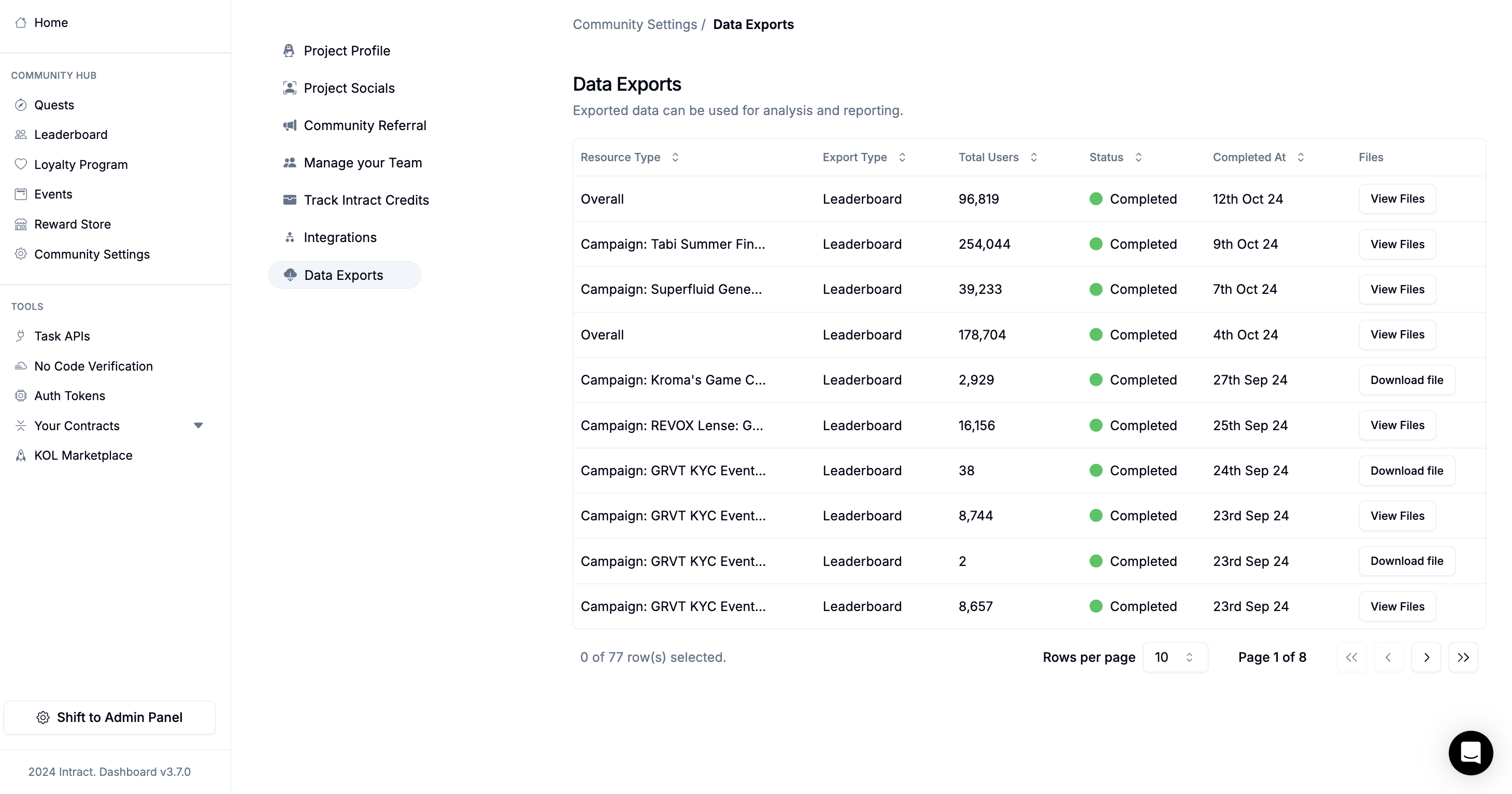
Our platform provides the capability to export a variety of data according to your needs in any file type that you want. This includes but is not limited to campaign data, but also event data, overall leaderboards, and leaderboard specific to a particular campaign.
You can also export submission data from PoW tasks. You can also download information about winners along with their detailed profiles and other relevant details.
We understand that data can be extensive, and handling large files can be a challenge. Therefore, in situations where the file size gets too large for a single export, our system is designed to split the data into several files. This makes the data more manageable and easier to export. Rest assured, despite the division of data, all your information will be intact and readily available for your convenience.